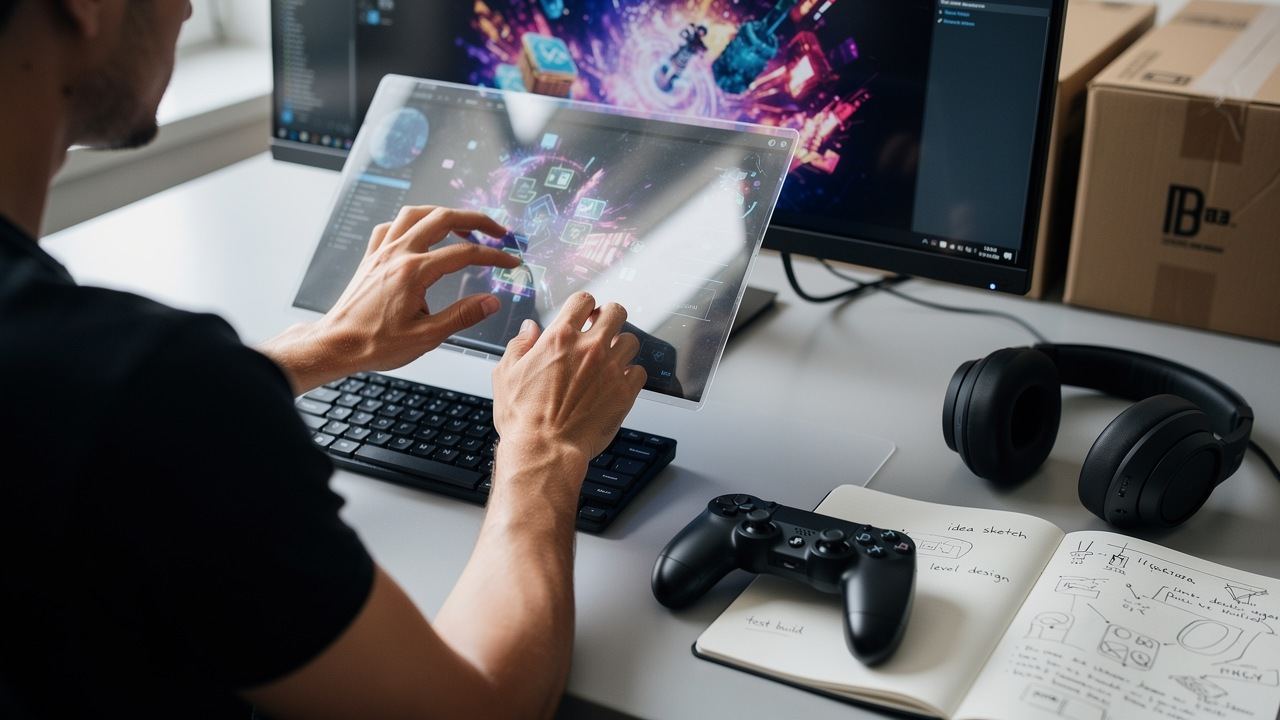
Start with the behavior you need from your desktop rather than aesthetics alone. Ask which metrics or shortcuts you consult during a typical hour of work. Limit widgets to those that answer those questions quickly without forcing context switches. A lean layout improves both focus and system responsiveness.
Common productivity widgets include a focused task list, a small calendar with upcoming items, a lightweight system monitor, and a quick-launch dock. Use widgets that offer compact modes or collapse behavior for occasional use. Avoid placing large widgets in central screen areas where they compete with primary windows. Prioritize glanceable data.
Designing for focus
Spacing and placement matter; keep critical widgets near your main work area but off active window zones. Use consistent padding and alignments so the desktop reads as a single surface. Consider screen edges for less frequently referenced tools and reserve the center for active applications. Use a hidden zone or hotkey to reveal secondary widgets.
Choose reputable sources and prefer skins with version history. Inspect scripts for network calls and limit internet access for widgets that do not need it. If a widget requires enhanced permissions, consider alternatives or use a standard account for daily work. Back up working configurations before trying experimental skins.
Less is more: a small set of glanceable widgets improves focus.
Essential widgets to consider
Real-world setups range from a single vertical monitor with stacked widgets to a multi-monitor layout where a secondary display is dedicated to tools. Streamers often reserve one monitor for chat and overlays, while developers keep logs and system monitors on a secondary screen. Replicate a setup in a test profile before applying it to your daily environment.
Maintaining performance means using widgets that update at sensible intervals and avoiding continuous polling where possible. Set longer refresh intervals for networked widgets and reduce graphical effects that tax the GPU. Monitor memory use periodically, especially after installing several new skins. Remove or disable widgets that show erratic resource usage.
Choosing widget sources
- Limit to three primary widgets during work sessions.
- Use secondary monitor for chat and persistent tools.
- Set refresh intervals to 30s or more for network widgets.
Common challenges include conflicting hotkeys, overlapping click zones, and widgets that steal focus. Resolve hotkey conflicts by standardizing shortcuts and checking global application bindings. Use click-through settings where available so widgets do not intercept input. Test interactions under typical workload conditions.
Advanced techniques include scripting profile switches based on active application detection and using lightweight IPC to sync values between widgets. You can create condition-based visibility rules to hide certain widgets during fullscreen tasks. Keep automation scripts small and well-documented to avoid accidental behavior changes.
Layout and spacing
Step-by-step: pick a primary widget for your most-used metric, position it in a glanceable spot, add two supporting widgets, and test the setup for a full workday. Iterate by removing any widget you did not consult at least three times during the day. Export a backup once the layout is stable. Label the backup with the date and purpose.
In 2026, expect more widgets to support profile switching and better resource controls. Tool authors are adding explicit test modes and exportable layout metadata. The same design principles apply: reduce clutter, surface only necessary information, and validate resource use before committing to a layout.
Backup your layout before major changes to avoid wasted time.
Maintaining performance
Best practices: audit your widgets monthly, keep refresh rates conservative, and back up layouts before experimenting. Share compact screenshots with community reviewers if you need feedback on readability or accessibility. Use contrast and font sizing choices that remain legible across varied lighting conditions.
Exporting and backing up layouts
- Export layouts with clear filenames and dates.
- Prefer widgets with changelogs and community reviews.
- Test for input conflicts after each new install.
A well-designed widget layout helps you stay informed without distraction. Start small, validate by usage, and iterate based on logged behavior. If you need help, consult community examples and reproduce their core elements before customizing. Practical design beats maximalism every time.