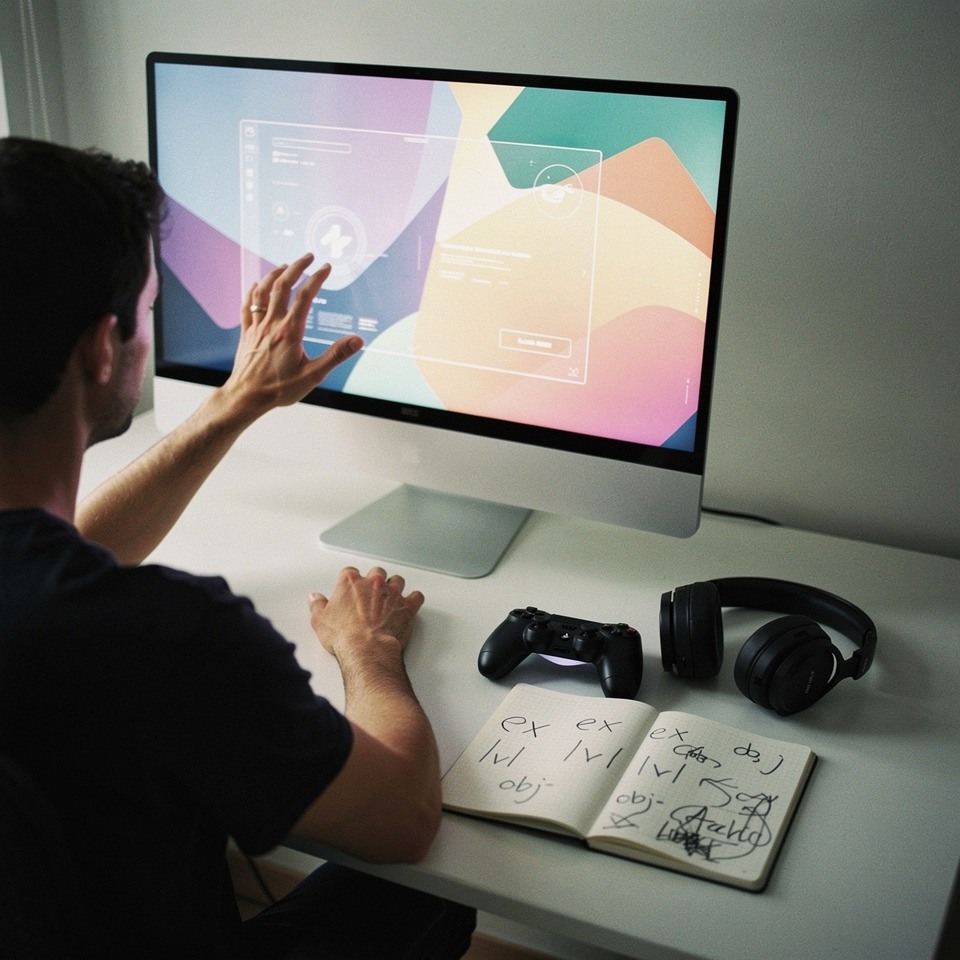

Monitoring FPS and temperatures while gaming gives you actionable signals about system health and performance. A short test session shows whether changes to settings or cooling actually help. This guide focuses on practical, repeatable steps you can run on most Windows rigs. No specialized hardware is required for initial checks.
Start with lightweight overlays that display FPS, CPU load, GPU load, and temperatures. Many communities use a simple HUD on a secondary monitor or a small corner overlay on the main screen. Keep the overlay size minimal to avoid visual distraction and to prevent rendering overhead. Test with a consistent benchmark sequence to compare results.
Why monitor during play
Select tools that write logs to disk so you can review spikes after play. Configure a short sampling interval and ensure timestamps line up with your session footage or notes. If you see recurring spikes, correlate them with in-game events such as scene changes, cutscenes, or background tasks. Repeat the test after each major driver or settings change.
Safe thresholds depend on your hardware and ambient cooling, but consistent trends matter more than a single peak. For example, a sustained GPU temperature above a vendor-recommended long-term value calls for fan tuning or improved airflow. Look for step-changes in temperature that match sustained high utilization. Use profile switching to test conservative and aggressive cooling sets.
Measure before you change; telemetry removes guesswork from tuning.
Tools and overlays to use
Real-world application includes A/B testing of graphics settings, fan curves, and power plans. Streamers can capture telemetry alongside encoding stats to avoid overloading the GPU during live broadcasts. Casual players can apply simpler rules like keeping average CPU temps below a target value during long sessions. Document each test so you can reproduce conditions later.
Benefits include improved stability, predictable performance, and the ability to spot early hardware issues. Many readers report smoother sessions when they tune fan curves and remove unnecessary background tasks. System longevity improves when components operate in safer thermal ranges rather than near peak thresholds. Measured change is the best indicator of success.
Overlay placement tips
- Run three repeatable tests and compare median values.
- Log to disk rather than relying only on on-screen overlays.
- Use a secondary monitor for full HUDs to avoid input interference.
Common challenges include inconsistent sampling, background processes that skew results, and overlay interference with input. Resolve inconsistent sampling by standardizing the test scene and closing unrelated programs. If overlays cause input lag, try logging-only modes that write values to disk without drawing on-screen. Use a spare account for testing when installs require different privileges.
Advanced techniques include combining telemetry from multiple sensors and using simple scripts to aggregate logs. Power users can run automated sequences to stress particular subsystems and capture time-aligned traces. Avoid over-automation unless you need repeatable regression checks. Use scripting to extract median and percentile values rather than relying on single peaks.
Setting safe thresholds
Step-by-step: install a logging-capable tool, configure a small overlay, run a ten-minute play session of a repeatable scene, and export the log. Compare logs before and after each change and note the median FPS and 95th percentile temperature. If results are ambiguous, extend the session duration or repeat the test three times for statistical confidence. Keep a backup of original configuration files.
Looking ahead in 2026, tool integration will emphasize clearer export formats and easier aggregation across multiple monitors. Expect overlays to become more configurable in terms of sampling rates and logging formats. The core principle remains: measure, change one variable, and measure again. Modern workflows favor reproducible tests over anecdotal adjustments.
Small consistent tests produce more reliable tuning than sweeping changes.
Logging and interpreting data
Best practices: keep overlays minimal, log data to disk, standardize test scenes, and document each change. Share anonymized logs with community channels to get peer feedback on anomalies. Use conservative thresholds for long sessions, and prefer profile switching to permanent aggressive settings. Maintain backups of profiles before major edits.
How to capture a reliable log
- Document fan curve changes with versioned profiles.
- Close background apps before benchmark runs.
- Prefer percentiles (95th) over single peak numbers.
Monitoring gives you data to make confident changes to graphics and cooling settings. Follow small, documented steps and rely on logged results rather than impressions alone. If you need help interpreting logs, share exports with experienced community members or consult a technician. Practical testing yields steady improvements over time.